Vendor Dashboard Quick Start
Learn where the main vendor tasks live so you can move from overview to listings, bookings, messages, and payouts without hunting through the site.
Why this matters
The dashboard is the operating home for a PartyShare vendor. Knowing where each task starts reduces missed requests, stale listings, and unnecessary support questions.
Step by step
Start on Overview
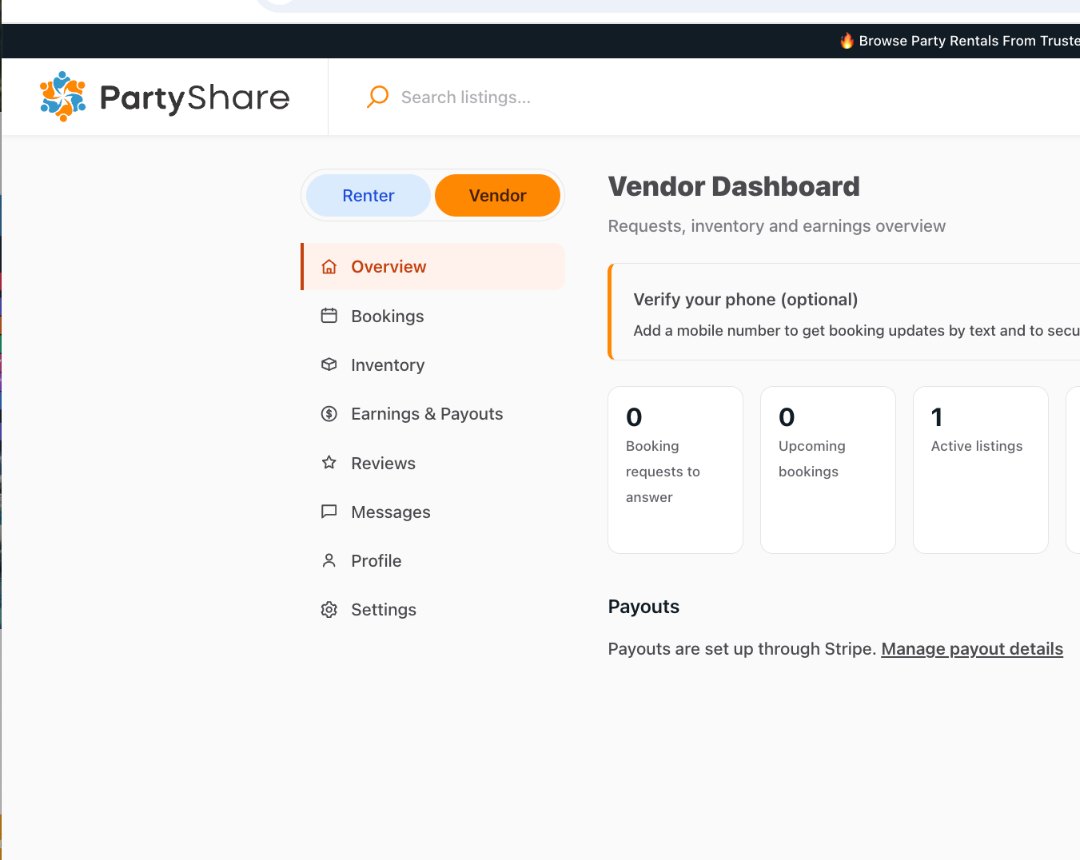
Review booking requests to answer, upcoming bookings, active listings, drafts, and earnings information before you work elsewhere.
Open the task area you need
Use Bookings, Inventory, Earnings & Payouts, Reviews, Messages, Profile, or Settings from the left navigation.
Use Quick actions when faster
The current dashboard includes Add listing, Manage inventory, View messages, and Review payouts.
Clear account prompts
If PartyShare shows an optional verification or account prompt, complete it when practical so important notices reach the right place.
Return to Overview
After completing a task, use Overview to confirm the dashboard reflects the new state.
Correct vs. avoid
Good approach
A vendor checks Overview daily, answers pending booking requests first, then reviews inventory and messages.
Avoid
A vendor relies only on email and never checks the dashboard, leaving booking requests or drafts unattended.
Completion checklist
- I can find Bookings, Inventory, Messages, Reviews, Profile, Settings, and Earnings & Payouts.
- I know where to start a new listing.
- I know where drafts and active listings are managed.
- I know where payout details are managed.
- My profile and account contact information are current.
Common mistakes
- Treating the dashboard as a reporting page instead of a work queue.
- Ignoring drafts that still need photos, pricing, or fulfillment.
- Waiting for support when the needed action is already available in the left navigation.
Frequently asked questions
Where do I create a listing?
Use Add listing from Quick actions or the List a Rental entry point shown in PartyShare.
Completion checklist
- I can find Bookings, Inventory, Messages, Reviews, Profile, Settings, and Earnings & Payouts.
- I know where to start a new listing.
- I know where drafts and active listings are managed.
- I know where payout details are managed.
- My profile and account contact information are current.
- Start on Overview
- Open the task area you need
- Use Quick actions when faster
- Clear account prompts
- Return to Overview
- Good approach
- Avoid